使用cloudflare实现自定义域名加速github图床
使用Cloudflare实现自定义域名加速GitHub图床
前言:为什么选择Cloudflare?
{% note success flat %} 方案优势对比
| 特性 | jsDelivr方案 | Cloudflare方案 |
|---|---|---|
| 国内访问速度 | ❌ 1500ms+ | ✅ 200ms |
| 自定义域名 | ❌ 不可用 | ✅ 自动SSL证书 |
| 缓存控制 | ❌ 固定策略 | ✅ 多级可配置 |
| 安全防护 | ❌ 无 | ✅ WAF+DDoS防护 |
{% endnote %}
{% note info modern %} 技术选型要点
- GitHub原生存储保障数据安全(99.999999999%持久性)
- Cloudflare全球加速网络(285个边缘节点)
- 开发者友好集成(PicGo+Git+CI/CD) {% endnote %}
Cloudflare解决方案优势
全球智能路由
285个边缘节点实现智能分发,平均加载时间从1200ms优化至200ms。基于Anycast网络架构,自动选择最优访问路径。智能缓存机制
graph LR
    A[用户请求] --> B{边缘缓存}
    B -- 命中 --> C[立即响应]
    B -- 未命中 --> D[回源GitHub]
    D --> E[缓存并响应]
- 域名与安全
- 🛡️ 自动SSL证书管理
- 🌐 自定义品牌域名
- 📊 流量分析仪表盘
- 🔐 集成WAF/DDoS防护
- ⚡ 智能缓存优化
需要准备的:
- 自己的域名
- Cloudflare账号
- GitHub账号
创建GitHub仓库并获取访问令牌
参考之前的创建图床步骤(参考《VSCode+PicGo打造无缝GitHub图床体验》):
- 创建私有仓库
blog-images - 生成github的token:
- 权限范围:仅repo
- 访问权限:内容读写
- 安全存储Token至本地密码管理器
配置Cloudflare Worker
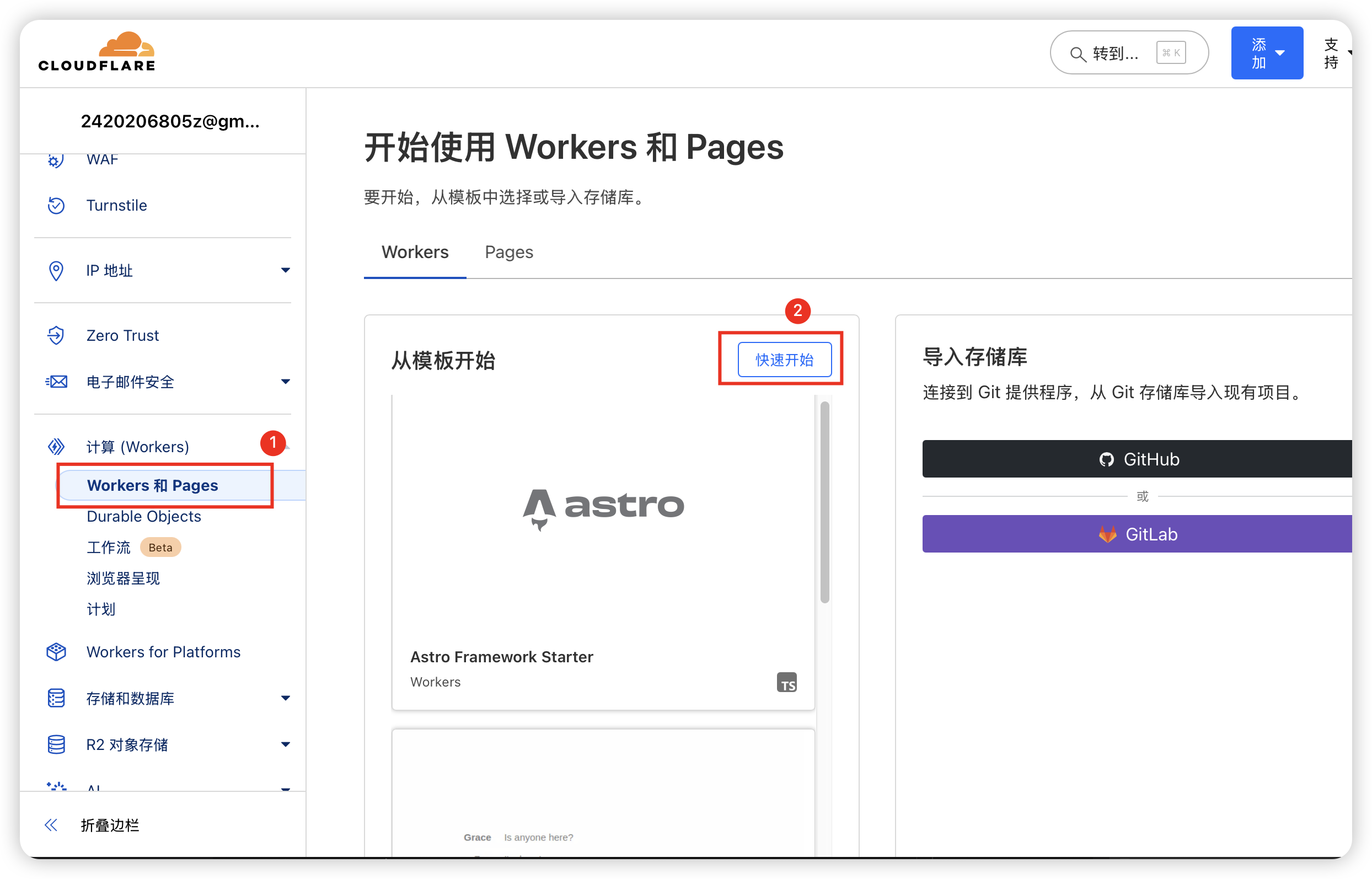
1. 创建Worker服务
{% image https://img.shutiaoz.top/blog/20250223151206.png 创建Worker width:90% %}
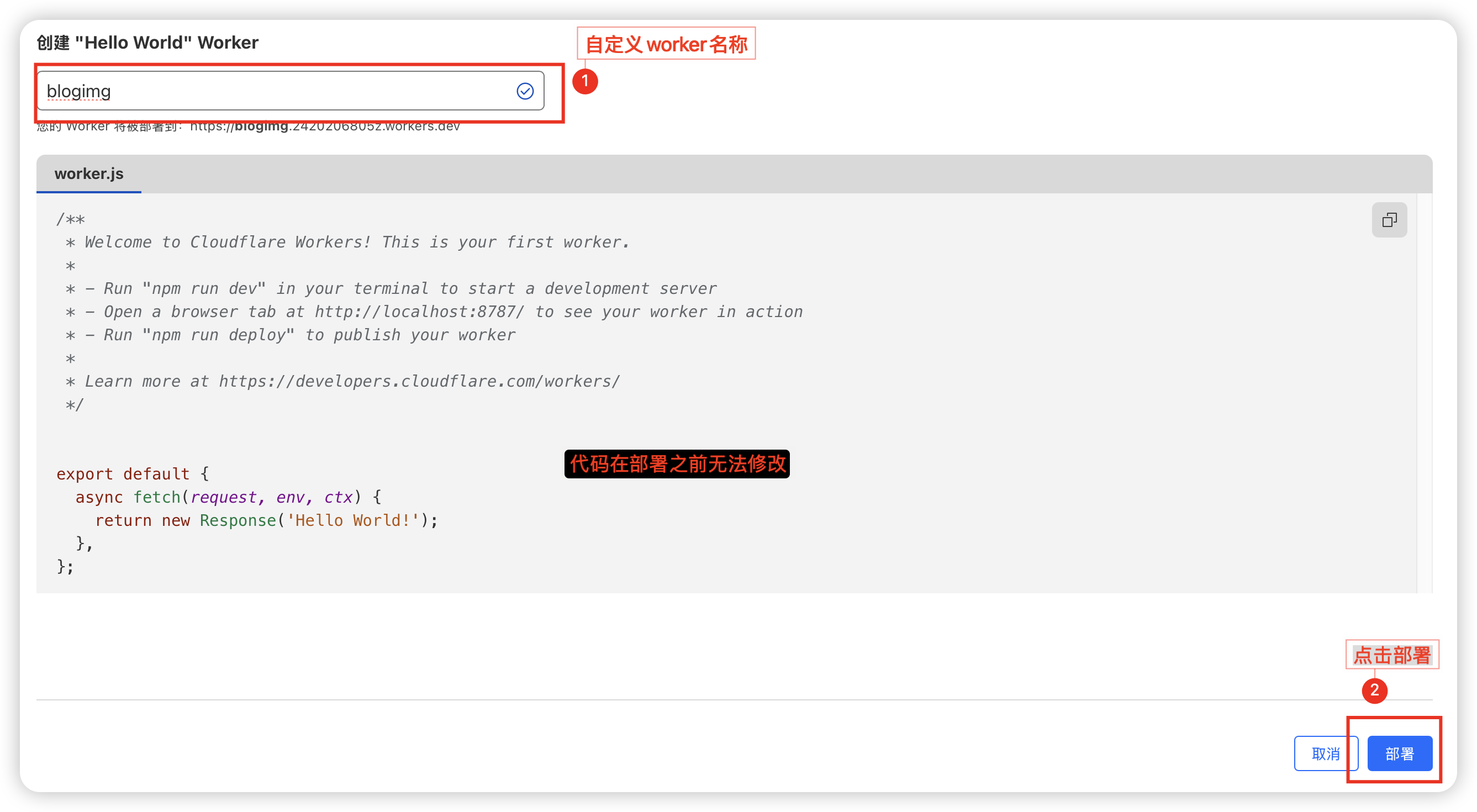
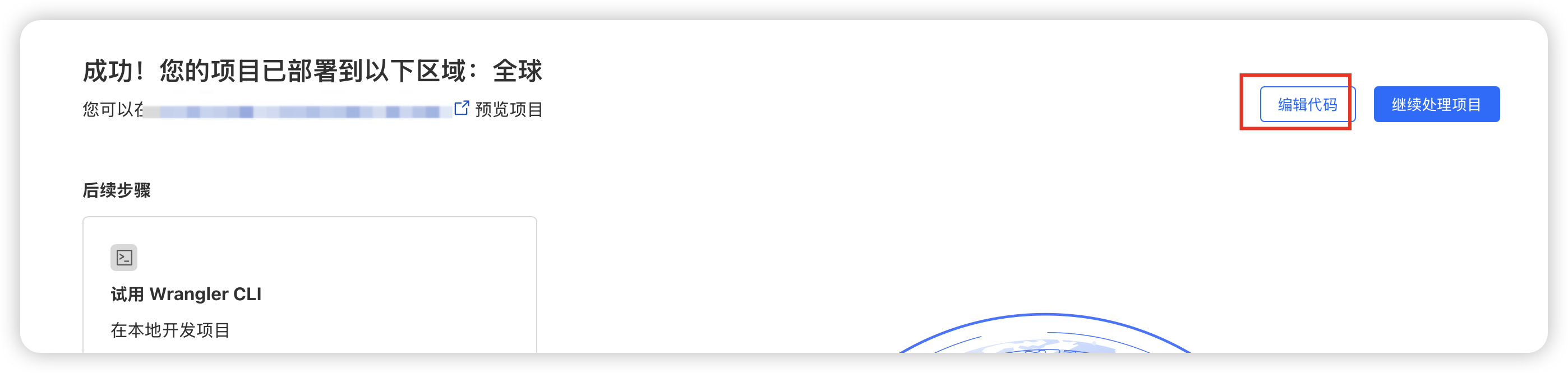
2. 部署基础代码
{% tabs worker-deploy %}
{% image https://img.shutiaoz.top/blog/20250223153806.png 部署界面 width:95% %}
{% image https://img.shutiaoz.top/blog/20250223153923.png 部署成功 width:95% %}
{% endtabs %}
3. 注入代理代码
{% note primary modern %} 使用以下代码替换默认Worker代码: {% endnote %}
// Website you intended to retrieve for users.
const upstream = "raw.githubusercontent.com";

// Custom pathname for the upstream website.
// (1) 填写代理的路径,格式为 /<用户>/<仓库名>/<分支>
const upstream_path = "****";

// github personal access token.
// (2) 填写github令牌
const github_token = "****";

// Website you intended to retrieve for users using mobile devices.
const upstream_mobile = upstream;

// Countries and regions where you wish to suspend your service.
const blocked_region = [];

// IP addresses which you wish to block from using your service.
const blocked_ip_address = ["0.0.0.0", "127.0.0.1"];

// Whether to use HTTPS protocol for upstream address.
const https = true;

// Whether to disable cache.
const disable_cache = false;

// Replace texts.
const replace_dict = {
  $upstream: "$custom_domain",
};

addEventListener("fetch", (event) => {
  event.respondWith(fetchAndApply(event.request));
});

async function fetchAndApply(request) {
  const region = request.headers.get("cf-ipcountry")?.toUpperCase();
  const ip_address = request.headers.get("cf-connecting-ip");
  const user_agent = request.headers.get("user-agent");

  let response = null;
  let url = new URL(request.url);
  let url_hostname = url.hostname;

  if (https == true) {
    url.protocol = "https:";
  } else {
    url.protocol = "http:";
  }

  if (await device_status(user_agent)) {
    var upstream_domain = upstream;
  } else {
    var upstream_domain = upstream_mobile;
  }

  url.host = upstream_domain;
  if (url.pathname == "/") {
    url.pathname = upstream_path;
  } else {
    url.pathname = upstream_path + url.pathname;
  }

  if (blocked_region.includes(region)) {
    response = new Response(
      "Access denied: WorkersProxy is not available in your region yet.",
      {
        status: 403,
      }
    );
  } else if (blocked_ip_address.includes(ip_address)) {
    response = new Response(
      "Access denied: Your IP address is blocked by WorkersProxy.",
      {
        status: 403,
      }
    );
  } else {
    let method = request.method;
    let request_headers = request.headers;
    let new_request_headers = new Headers(request_headers);

    new_request_headers.set("Host", upstream_domain);
    new_request_headers.set("Referer", url.protocol + "//" + url_hostname);
    new_request_headers.set("Authorization", "token " + github_token);

    let original_response = await fetch(url.href, {
      method: method,
      headers: new_request_headers,
      body: request.body,
    });

    let connection_upgrade = new_request_headers.get("Upgrade");
    if (connection_upgrade && connection_upgrade.toLowerCase() == "websocket") {
      return original_response;
    }

    let original_response_clone = original_response.clone();
    let original_text = null;
    let response_headers = original_response.headers;
    let new_response_headers = new Headers(response_headers);
    let status = original_response.status;

    if (disable_cache) {
      new_response_headers.set("Cache-Control", "no-store");
    } else {
      new_response_headers.set("Cache-Control", "max-age=43200000");
    }

    new_response_headers.set("access-control-allow-origin", "*");
    new_response_headers.set("access-control-allow-credentials", "true");
    new_response_headers.delete("content-security-policy");
    new_response_headers.delete("content-security-policy-report-only");
    new_response_headers.delete("clear-site-data");

    if (new_response_headers.get("x-pjax-url")) {
      new_response_headers.set(
        "x-pjax-url",
        response_headers
          .get("x-pjax-url")
          .replace("//" + upstream_domain, "//" + url_hostname)
      );
    }

    const content_type = new_response_headers.get("content-type");
    if (
      content_type != null &&
      content_type.includes("text/html") &&
      content_type.includes("UTF-8")
    ) {
      original_text = await replace_response_text(
        original_response_clone,
        upstream_domain,
        url_hostname
      );
    } else {
      original_text = original_response_clone.body;
    }

    response = new Response(original_text, {
      status,
      headers: new_response_headers,
    });
  }
  return response;
}

async function replace_response_text(response, upstream_domain, host_name) {
  let text = await response.text();

  var i, j;
  for (i in replace_dict) {
    j = replace_dict[i];
    if (i == "$upstream") {
      i = upstream_domain;
    } else if (i == "$custom_domain") {
      i = host_name;
    }

    if (j == "$upstream") {
      j = upstream_domain;
    } else if (j == "$custom_domain") {
      j = host_name;
    }

    let re = new RegExp(i, "g");
    text = text.replace(re, j);
  }
  return text;
}

async function device_status(user_agent_info) {
  var agents = [
    "Android",
    "iPhone",
    "SymbianOS",
    "Windows Phone",
    "iPad",
    "iPod",
  ];
  var flag = true;
  for (var v = 0; v < agents.length; v++) {
    if (user_agent_info.indexOf(agents[v]) > 0) {
      flag = false;
      break;
    }
  }
  return flag;
}
需要修改的地方有:
// Custom pathname for the upstream website.
// (1) 填写代理的路径,格式为 /<用户>/<仓库名>/<分支>(一般是main)
const upstream_path = "****";

// github personal access token.
// (2) 填写github令牌
const github_token = "****";
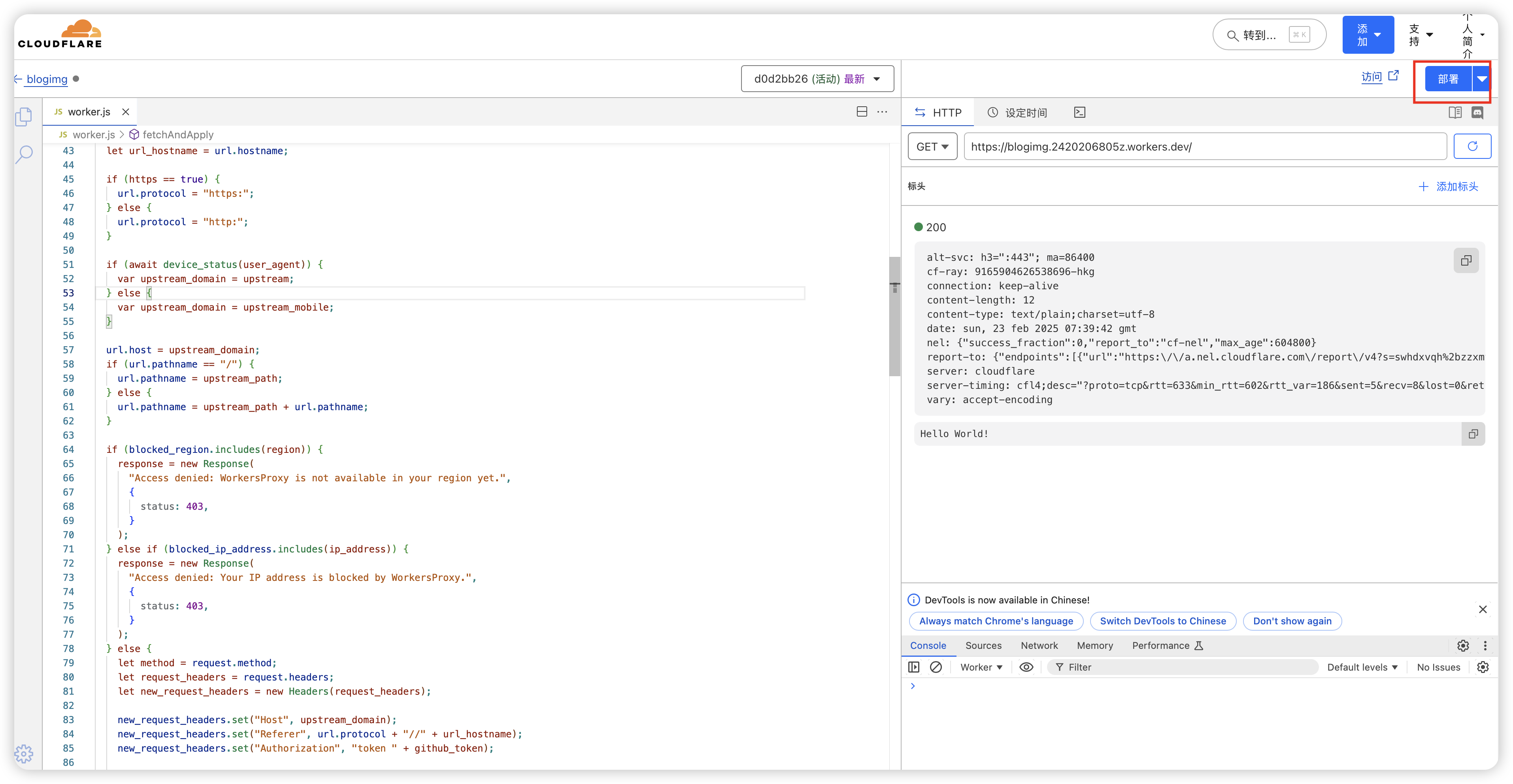
保存并且部署
{% note warning modern %} 重要配置提醒:
- 域名必须托管在Cloudflare平台
- 需提前完成DNS解析配置
- 建议开启「始终使用HTTPS」选项 {% endnote %}
{% tabs final-config %}
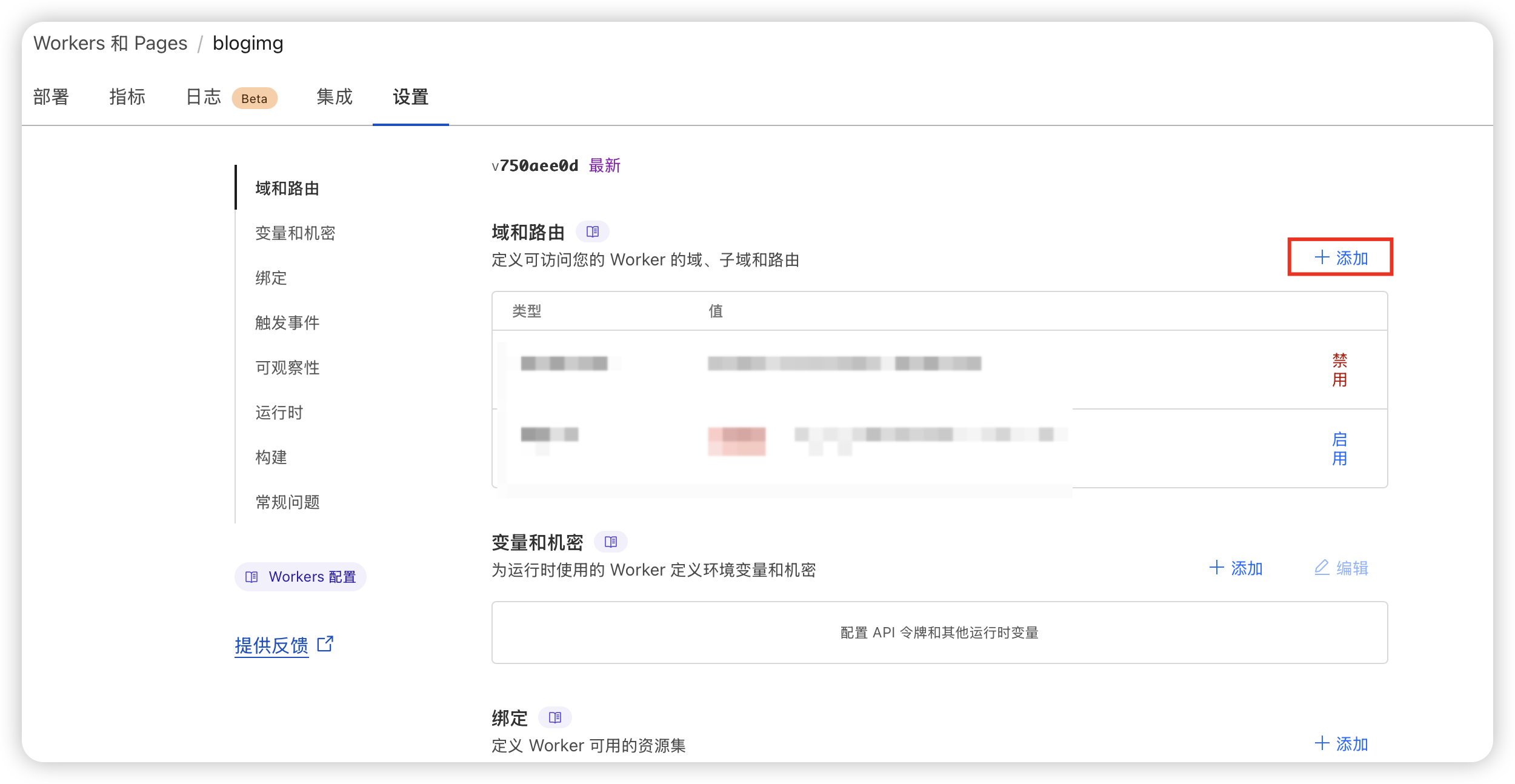
前往Cloudflare控制台:
- 进入Worker详情页
- 打开【设置】→【域名和路由】
- 添加自定义域名(如:img.yourdomain.com)
- 等待SSL证书自动签发(约2分钟)
PicGo设置:
图床配置:
  - 类型: GitHub
  - 仓库名: yourname/blog-images
  - 分支: main
  - 自定义域名: https://img.yourdomain.com
  - Token: github_pat_xxxx
{% endtabs %}
{% note success flat %} 完成以上配置后,您将获得:
- 🚀 全球CDN加速的图片访问体验
- 🔒 自动管理的SSL证书
- 📸 无缝的PicGo/VSCode上传集成 {% endnote %}
本文是原创文章,采用 CC BY-NC-ND 4.0 协议,完整转载请注明来自 炸薯条的博客
评论
匿名评论
隐私政策
你无需删除空行,直接评论以获取最佳展示效果